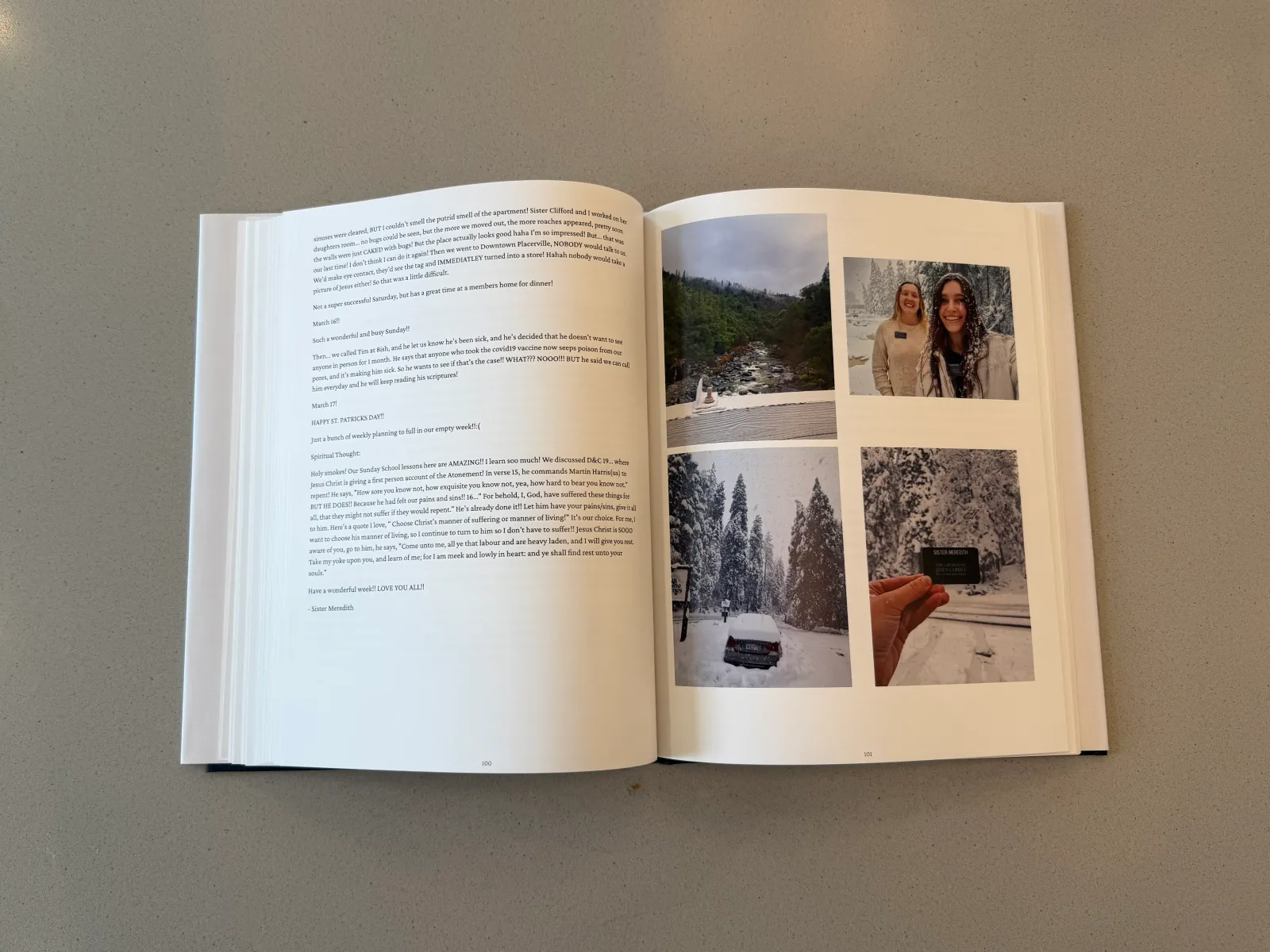
Your missionary is home, and somewhere in your inbox are all the emails they sent. You remember reading them each week. Now you would like to put them in a book without copying and pasting your way through the entire mission.
With Letters Home, you can upload saved emails for free, review the letters and photos, then generate a book preview and download a PDF. Printing is a separate choice: hardcovers currently start at $99 for up to 150 pages, with additional pages, shipping, and tax charged separately. Check current pricing before ordering.
The steps are gather, upload, review, and preview. You can see a fictional sample book before creating a collection; the sample demonstrates the page format without sharing anyone's private letters.
Gather Your Emails
Start by finding all the emails. This may be the account that has the most complete set of letters. That might be your own inbox, the missionary's inbox, if they still have access and want to use it, or the family member who forwarded everything to everyone else.
Search for the missionary's email address and put the emails in one folder or label. Check whether they used another address earlier in the mission. If you notice a missing month, ask another recipient before assuming those letters are gone.
If you use Gmail, we have a separate guide showing how to export your emails and upload them to Letters Home. You will organize the emails under a label, download an export from Google, and upload the file. A label is simply Gmail's way of grouping messages together.
Keep the original export after uploading it. It is useful to have a separate copy of the emails, even after they are in your collection.
Upload Your Saved Emails
In Letters Home, create a collection and choose Upload saved emails. Give the collection a name, then select Create and Import.
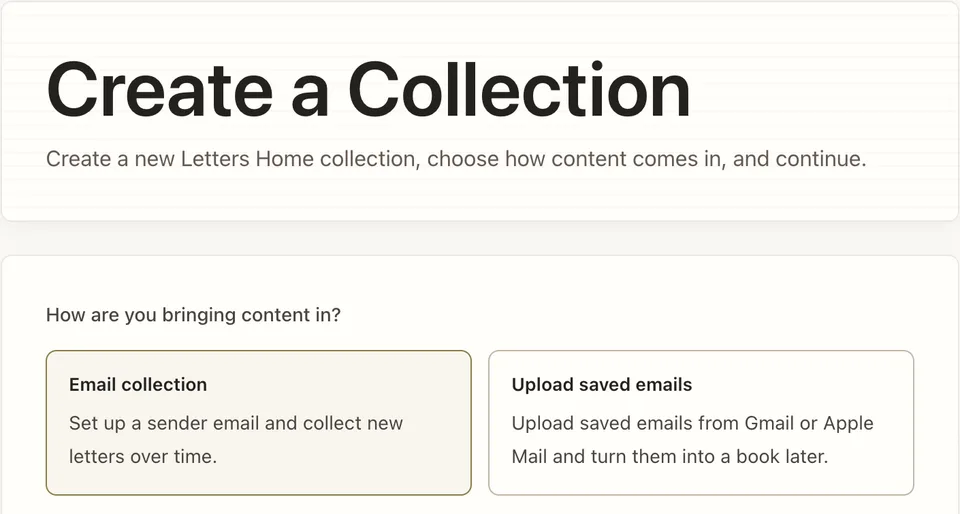
Choose Upload saved emails when you already have an email export.
On the collection settings page, find Upload saved emails. Choose your export file, then select Import emails. The form shows the supported file types and current upload limit.
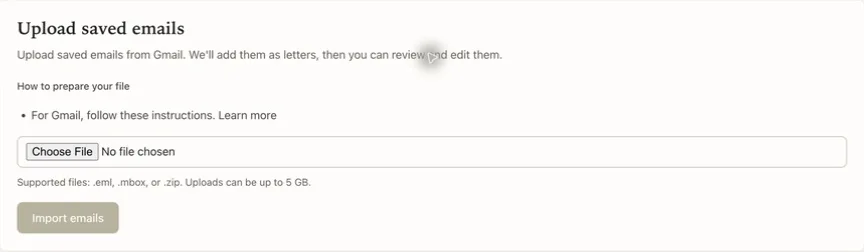
Select your saved email file here. Keep the original download as a separate backup.
Check What Came Across
Once the letters are in the collection, go through and check the dates, text, and photos. Start with the first letter, the last letter, and a few in the middle.
You may find the same email twice or a reply that includes the whole original message again. Review forwarded text and signatures as well as the letter itself.
Look for:
- Duplicate letters and replies you do not want in the book.
- Forwarding headers or signatures that interrupt the letter.
- Dates that reflect when a message was forwarded instead of originally sent.
- Photos that are missing or attached to the wrong week.
This is also a good time to look for any gaps. If nobody can find a missing letter, you can still make the book with what you have. If you add a later memory to explain a gap, label it as a reflection so readers can distinguish it from an original letter.
Keep the Letter Sounding Like Your Missionary
You can edit the imported text manually to correct mistakes or clarify a confusing sentence. Free saved-email import does not include the paid spelling and grammar tools. There is no need to rewrite every letter to make it sound more impressive. The quirks are what make it fun to read!
Those expressions they used every week are part of what you are preserving. So are the little stories about cooking, learning the language, and figuring things out with a new companion.
If you add a memory after the mission, label it as a later reflection. That way a reader can tell which came from you and what came from the original letter.
Choose the Photos
Check which photos came across with the imported messages. An attached image and a link to an image elsewhere are different; an externally linked photo may be missing. Use the original photo files when you have them. A screenshot of a photo might look fine on your phone, but it may not look as clear when printed larger.
Choose pictures that belong with the story. You probably do not need all six versions of the same group photo, but you may want the ordinary picture that explains something mentioned in the letter. You can choose photos to be in a photo gallery as well at the end of the book, if it doesn't fit in the context of the letter.
Review Your Book
Before ordering, look through the book proof. A proof is a preview of the pages so you can check how the book will look.
Read a few longer letters, check the pictures, and confirm the name and dates on the cover. Then look through every page for anything missing or cut off. The fictional sample book includes long letters across multiple pages. Use it to see the format, then inspect every page of your own preview.
Collections stay private by default. Consider the writer's wishes and sensitive details before deciding who should receive a copy.
When you are ready, you can order the book! Check current pricing for your collection and print options.
You can start this process while the mission is underway too. Ongoing email collection gives new letters somewhere to arrive, so you have a collection waiting when it is time to make the book.
If your emails are already saved, start a free saved-email collection. Ongoing forwarding is a separate option for collecting new letters; you do not need to buy it to upload an existing archive.