You can bring selected Gmail messages into Letters Home by exporting them with Google Takeout and uploading the saved email archive. Saved-email imports are free. You can review the letters, make a book preview, and download a PDF; ordering a printed book is a separate choice.
This route uses a file you download from Google. It does not connect Letters Home directly to your Gmail inbox. Start with the messages you actually want in the book, rather than exporting your entire mailbox.
1. Group the Messages You Want to Keep
In Gmail, apply one label to the emails you want to import. Check the oldest and newest messages, and look for gaps or a second email address used earlier in the mission.
Review replies as well as original messages. Letters Home imports valid messages in the uploaded archive; it does not automatically know which family replies you want to leave out. If a conversation contains material you do not want in the collection, check your selection before exporting.
2. Export That Label With Google Takeout
Google Takeout lets you download your Google data. For this import, select Mail and the label you prepared. Google's current export instructions explain archive options and download delivery.
- Open Takeout and deselect the other Google products.
- Select Mail, then open All mail data included.
- Select only the label containing the messages you want.
- Continue to the next step and choose a one-time export in ZIP format.
- Create the export and download the archive when Google tells you it is ready.
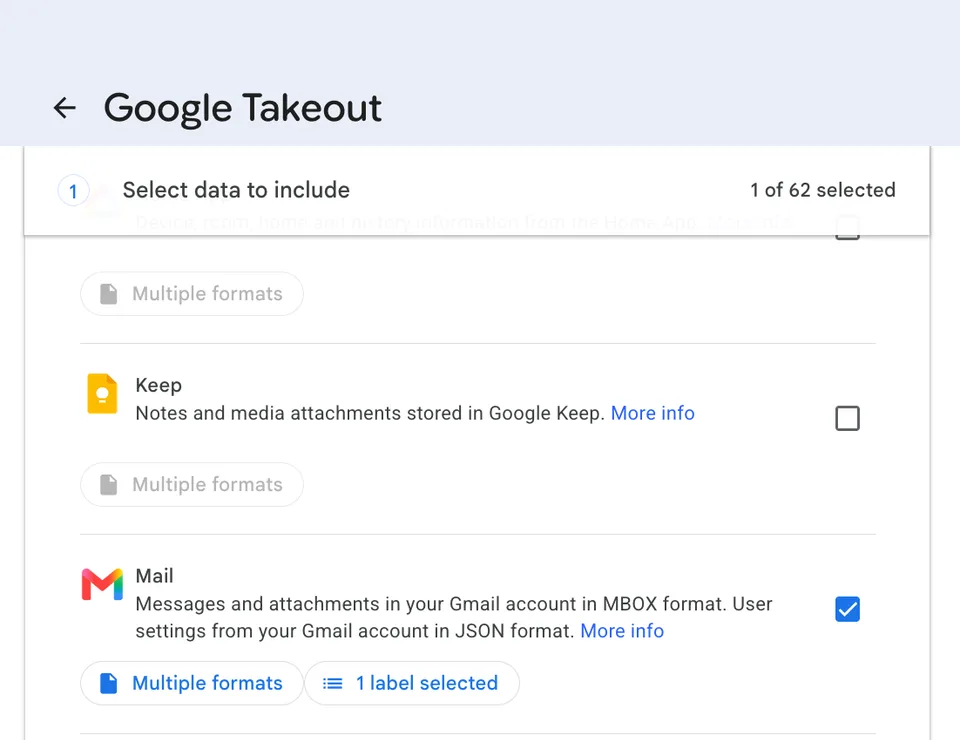
Google can split a large export into several archives. Choose an archive size that fits the current Letters Home upload form. Keep the original downloads as a separate backup.
3. Create a Saved-Email Collection
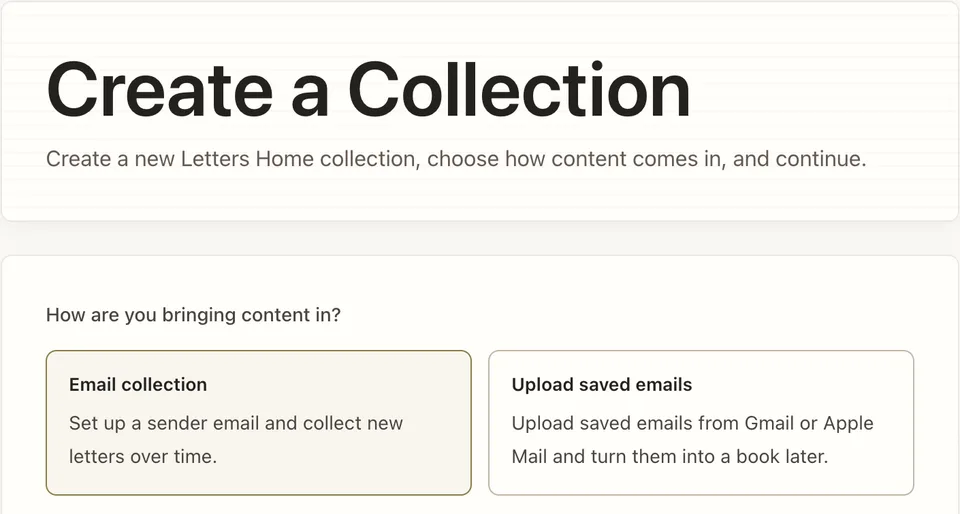
Start a free saved-email collection. In collection setup, choose Email collection and Upload saved emails, enter the collection details, then select Create and Import.
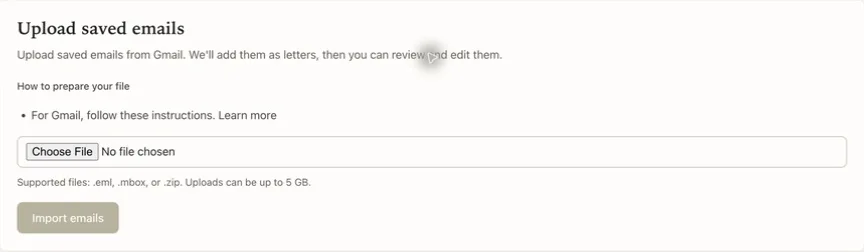
On the collection settings page, find Upload saved emails. Choose the downloaded ZIP, then select Import emails. The form also accepts EML and MBOX files and shows the current upload limit. If your archive exceeds that limit, export smaller selections instead of repeatedly uploading the same oversized file.
Wait for processing to finish before judging the result. A larger archive can take longer to appear in the collection.
4. Check the Letters and Photos
Compare the collection with your original selection. Check dates, the first and last letters, a long message, and one containing photos. Remove unwanted replies or repeated text before making the book.
Attached photos and externally linked photos are different. Keep original photo files, and check the preview for missing images rather than assuming every image shown in Gmail was included in the export.
Collections stay private by default. Review sensitive details and the writer's wishes before sharing a book with other people.
5. Preview Before You Print
Follow the full guide to turning missionary emails into a book for reviewing the collection and preparing your pages. The fictional sample book shows how long letters and photos can span several pages; it is a demonstration, not a customer's private correspondence.
Saved-email import and PDF download are free. Printed books and optional ongoing email collection have separate prices. Check current pricing before ordering. You can start with the archive you already have and decide about printing after seeing your own preview.