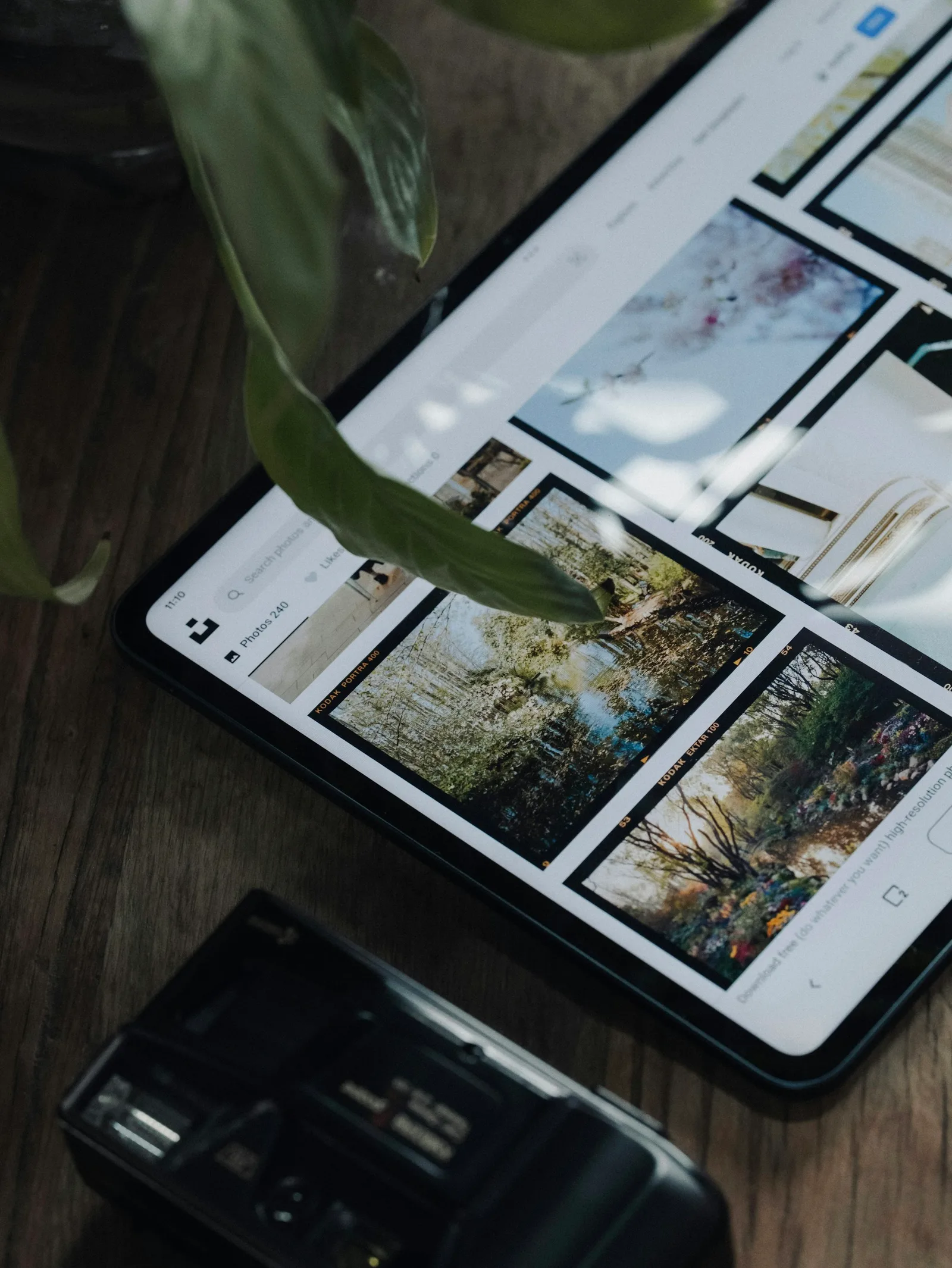
You are ready to make a mission book, but the photos are everywhere. Some came by email. Some are in a shared album. A family member has another folder that might contain the originals, although nobody is completely sure.
Start by gathering copies in one working location, preserving the original files, and sorting by date or mission area. Then connect the pictures to the letters they belong with. You can do this in small batches instead of sorting the whole mission in one sitting.
Make a List of Where the Pictures Are
Write down the sources before you start downloading. Include the missionary's own photo library, email attachments, shared albums, and any family folders.
Ask the owners for access or copies through the appropriate sharing options. You do not need anyone's password to collect pictures they are willing to share.
Keep track of which source you have checked. Otherwise, it is surprisingly easy to download the same album twice and wonder why the collection suddenly looks so complete.
Keep the Originals Separate
Make a folder for original files and another for the copies you are selecting or editing. Use the best available version of each picture, especially if it may be printed large.
Do not replace the original with a screenshot or a smaller edited copy. If the screenshot is all you have, keep it, but mark that you would like to find a better version.
Also keep a backup in a separate location you control. Sorting photos should not put your only copies at risk.
Sort by a Structure You Understand
Choose dates, areas, or another simple sequence that matches the way you remember the mission. You can use months inside each area if the collection is large.
For example, your working folders might look like this:
Mission photos
  Originals
  Book selections
    01 - Training
    02 - First area
    03 - Second area
  Dates or names to check
This is a suggestion for your own files, not a required Letters Home folder structure. Folder names help organize your own files; they do not create book sections or attach photos to letters automatically. The best system is one you can use without consulting a separate instruction manual.
A photo's file date may reflect when it was downloaded rather than taken. Check against letters and other records before treating it as the date of the event.
Choose Pictures That Add Something
Look at similar photos together. Keep the original set, then choose the clearest or most meaningful versions for the book.
You may want a picture of a place, a picture of the people involved, and a detail mentioned in the letter. Ten almost identical poses usually do not tell you ten different things.
An imperfect photo can still matter. Keep it if it records a meaningful moment, add context, and check how it looks in the book preview.
Connect the Pictures to the Letters
Open the relevant letter while you choose its photos. Look for references that help you match the week, people, or event.
In Letters Home, open the relevant letter, choose Edit, and upload the selected photos. Add captions and save the letter.
If a photo does not belong to a particular letter, give it its own context. Write down what it shows and approximately when it happened. Mark uncertain dates instead of making a guess look definite.
Our mission photo caption guide has examples for turning those notes into something useful on the page.
Review One Section Before Doing Everything
Try your organization on one month or one area. Can you find the pictures easily? Can someone else tell why you chose them? Are you repeatedly stopping to check names?
Fix the system while the batch is small, then continue. You do not need a perfect archive to make progress.
Letters Home lets you keep mission photos with your letters and review them as part of the collection. See how the service works, and check our photo tips if you want help choosing images that will work well in print.