Maybe you are changing email accounts, cleaning up old messages, or simply want another copy of your inbox. Whatever the reason, it is a good idea to know how to save your emails somewhere you control.
If you use Gmail, Google Takeout can create an archive of your messages for you to download. It does not delete the emails from your Google Account. Think of it as making a copy you can keep, rather than moving or organizing the messages in Gmail.
Choose Gmail in Google Takeout
Go to Google Takeout and sign in to the Google Account that has the email you want to save. Google may select several products automatically.
If you only need email, choose Deselect all, then select Mail.
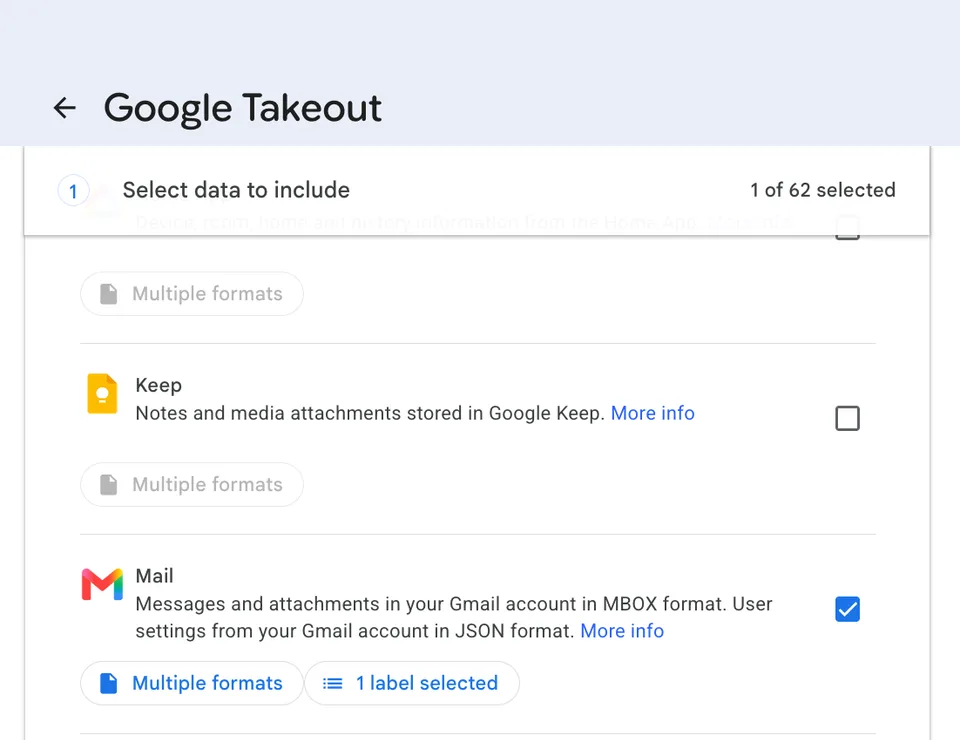
If the Mail option offers All Mail data included, open it to see whether you can limit which labels are in the export. Google notes that available choices can vary by product and account.
One limitation to know about: Gmail exports do not currently support choosing an exact date range. If you need to save only a certain time period, you may need to export the available mail and sort or filter a copy afterward.
Choose How to Receive the Archive
Select Next step to choose how Google will deliver the export. The simplest option is usually Send download link via email. You can also choose a supported cloud destination if that works better for your backup plan.
For a one-time backup, select a one-time export. Google also offers scheduled exports for some data. Check the choices shown in your account before creating the archive, since availability can depend on the account and current Takeout options.
Choose ZIP if you want an archive format that opens on most computers. Google may split a large export into several archive files based on the size limit you choose. If that happens, download each part before you start unpacking and organizing the contents.
Create, Download, and Unpack the Export
Select Create export. It may take a little while for Google to prepare the files. When they are ready, Google sends an email with a link to the archive.
Download the archive to a computer, then unzip it. Gmail messages are stored in an MBOX file. That file is a container for email messages; it is not usually meant to be opened by double-clicking like a document. Keep the MBOX file even if you do not have an email program ready to read it.
Google says Takeout download links expire after about seven days, so download the archive while the link is available. The link can only be used a limited number of times. Keep the downloaded copy somewhere safe before the link expires.
For the latest options and screenshots, follow Google's instructions for downloading your data.
Keep the Backup Somewhere You Can Find It
Give the downloaded files a clear folder name, such as Email backup - September 2026. Store a second copy in a different place you control, such as an external drive or a private cloud folder. If the email archive is sensitive, check who can access that folder before uploading it.
It is also useful to write down which Google Account the export came from and when you created it. The archive is a snapshot from the time you requested it, so make a fresh export when you need a more current backup.
Know What an Export Can and Can't Do
Google Takeout creates a copy of available data; it does not delete the original emails. It also cannot restore messages that are no longer available in your account. Recent changes made after you request the export may not be reflected in the archive, and school or work accounts may have download restrictions set by an administrator.
If your goal is to save emails as a backup, you can stop here. If you have a collection of meaningful messages you would like to read, share, or print as a book, Letters Home can help you turn saved emails into a book. Check the current options to see what fits your project.